Tried IFC/OBJ/STEP exports and Pollination suggestions but need a repeatable method that preserves geometry for CFD. Any scripts, plugins, or step‑by‑step tips much appreciated.
Recommended export/import format(s) and workflow for Revit family → IES component
(e.g., IFC / gbXML / OBJ / STEP / Pollination / other — which is most reliable for component geometry?)
Is there a supported process or tool to convert a Revit Family directly into a .GEM (or IES component library item)? If yes, please outline the steps or link to docs. If not, what is the recommended workaround?
We don’t support exporting Revit families to IES component library.
We do support exporting the rooms, spaces or areas with roofs, doors and windows to IESVE using the GEM file format. You can find the documentation and the tutorials for the Revit plugin here:
I’ve recently been testing this exact workflow for CFD purposes. I’ve found that using Pollination to bridge Revit families into the .gem format is the most reliable method for preserving volume.
My current workflow:
In Revit: Tag the families as ‘Shading’ using the Pollination panel.
Export: Export the selection as a .gem file.
In IESVE: Go to the Component Application and use ‘Import from .gem’.
Management: I usually export all families as a single group first, then separate them by copying and deleting the unnecessary components. This allows you to assign unique attributes to each individual component as required.
Finally, place the components into the IES model.
This is by no means a perfect solution, especially if dealing with complex families but hopefully it helps somewhat.
Thank you for sharing your workflow. Do you know if these components can be exported into a GEM file? If that’s possible we might be able to support them natively. Can you save a sample file with a single room and single component, export it as a GEM file and share the GEM file with me?
I admit that I don’t know what a component is referring to here but I imagine it is an inlet or an exhaust.
Hi @callums — quick note to clarify and offer next steps.
Short answer
You cannot export a .GEM from Revit. .GEM is an IESVE/ModelIT component file format that is created inside IESVE, not exported from Revit.
You can, however, export Revit geometry/families to neutral formats that IESVE can import gbXML (for spaces/zones). This option can be exported in Revit but cannot be export to IESVE; STEP/SAT (solids), OBJ/FBX (meshes), DWG/SAT via CAD exports, etc.
What “component” means here
A component = any discrete object you want to place in the model (chair, person, data rack, fan, converter tower, pipe). In our case it’s a converter tower / DC equipment that produces heat and affects airflow. For CFD we need the ability to represent that object in the model and assign heat (kW or W/m²) to it.
Practical options and recommended workflow
Simplify the Revit family first
Defeature it (remove bolts, grills, internal details). Keep only the outer envelope or a simplified block that represents the aerodynamic/thermal shape.
Export format choices from Revit
gbXML — best for building spaces/zoning (energy modeling).
IFC — good BIM exchange (useful for geometry + some props).
STEP/SAT — best if you want solids (preferred for CAD → IES).
OBJ/FBX — mesh format (works if you can decimate and clean the mesh).
Import into IESVE / ModelIT
Import the into ModelIT. Place the geometry, then create an IES component from that geometry and save it to your project/library (.GEM is produced inside IESVE as a component/library item).
If importing complex family fails or is too heavy, create a simplified box/cylinder in ModelIT sized to match the equipment and assign heat flux/kW — this is the most robust approach for CFD and is commonly used.
Assign heat & run CFD
Assign heat as surface heat flux (W/m²) or total kW per component (convert to W/m² by dividing by exposed surface area) depending on what data you have. Then run the CFD with the component in place.
If you want me to try, send you a family or revit model
Send me an email, please note the file size is about 25 MB.
That is correct for the native Revit exporter options but after installing the Pollination Revit plugin, you can export a .GEM file directly from Revit.
Thanks. Can you export a simple file with some components as GEM file from IESVE and share it with me. That will help me understand if this information is saved in a GEM file. If that is the case then we can move to next steps. You can email me the file at mostapha [at] ladybug [dot] tools.
I am very confused by your response, especially the second part (it seems AI generated). As you mention when defining “component” this could be large equipment, which is true in my case as well.
As @mostapha has clarified above the very reason for the Pollination plug in is to enable the ability to export from Revit in the .gem format. This was why I trialled the software in the first instance.
I would recommend you first look at exporting a model via the tutorials available on the discourse. Once you have a basic understanding of the Pollination tool then try exporting your components as shading using the workflow I mentioned above.
Thanks for the note. Sorry for the confusion. Here’s a clear summary from my testing and conversations:
• Pollination is mainly for exporting building geometry and shading from Revit, not for exporting Revit Family objects directly as .GEM. I tried the shading/export workflow and it won’t produce a usable family/component from a .rvt family file.
• IESVE support confirmed the same: their current workflows don’t reliably import detailed Revit families as VE components. They recommend using simple, defeatured components (boxes) because detailed families make the model too heavy and cause crashes.
• What worked best for me: create a simplified component in ModelIT , export/save the Model as a .GEM, then open the Component window and import that .GEM.
• For reference, IESVE’s data center example shows they use simple block components for equipment: https://www.iesve.com/services/projects/2490/cfd-virtus-data-centre-london
Thanks for sending the .gem file over. I had a look and now I understand what you mean. Thank you.
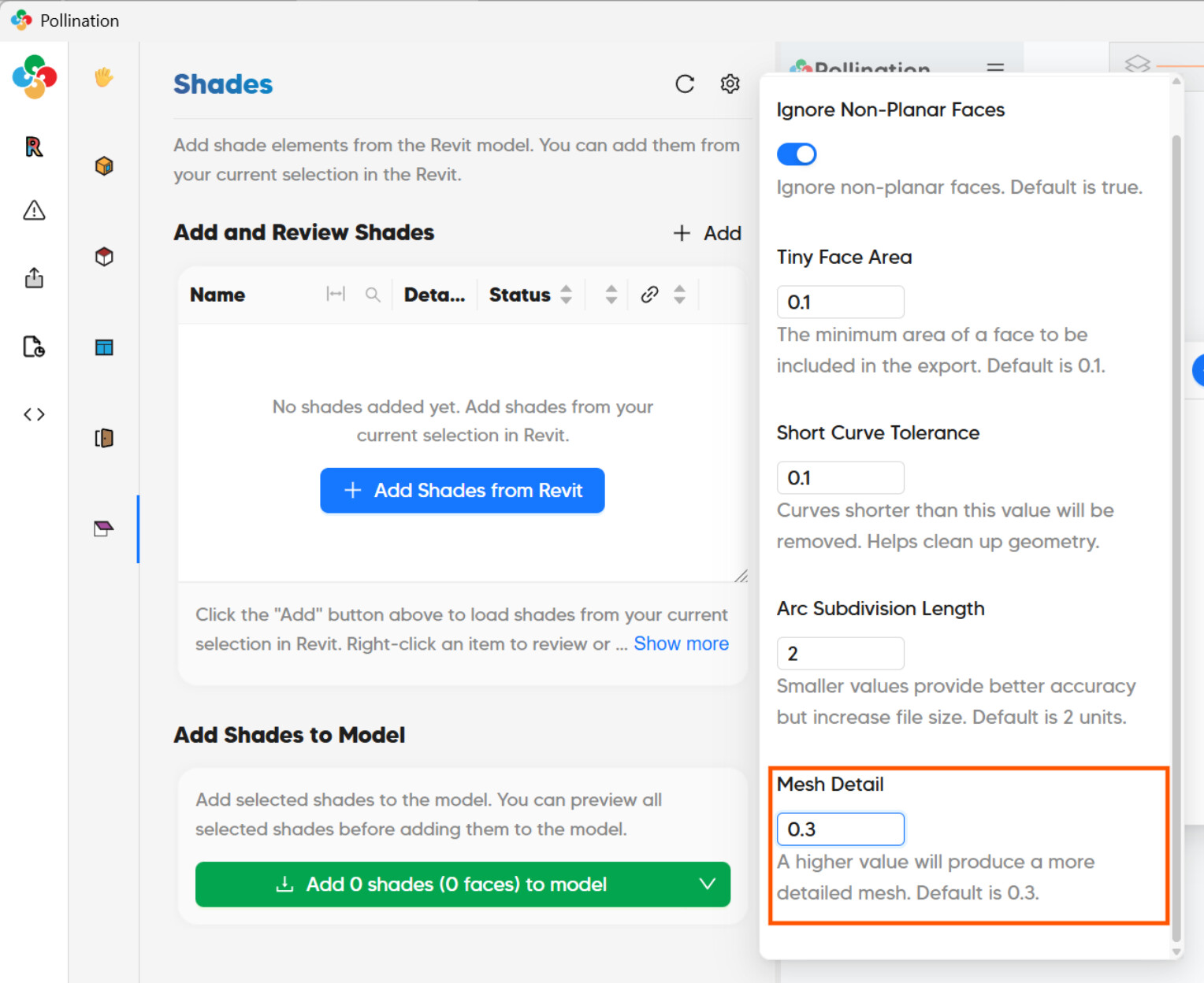
One piece of good news is that in Revit plugin v3, we have exposed the input that allows you to change the “Mesh Detail” level. Hopefully, that could help with generating geometries with not as many faces.
Would it be helpful to add an option to simplify these geometries to bounding boxes? That will be similar to the link that was shared by @victorzerpa. How much do you simplify these geometries before using them in IESVE?
I simplified the original component down to four simple boxes plus the leg. Any more detail than that causes the model to crash, so this is the most stable representation I can use for now.